Connect Mobela
to Claude
Let Claude read your workout history, analyze your training, and create personalized workout templates — all saved directly to your Mobela app.
Claude Pro (or paid plan) required
Custom MCP connectors are only available on paid Claude plans (Pro, Max, Team, Enterprise). On the free plan, Claude doesn’t show the “Add custom connector” option in Settings → Connectors. We’re working on an official Claude integration so Mobela can be listed among the built-in connectors — no custom setup needed.
What Claude can do with Mobela
Open Claude Desktop or Claude.ai
You'll need a Claude account. Works on Claude Desktop (Mac/Windows) and Claude.ai in the browser.
Open Connectors and add a custom one
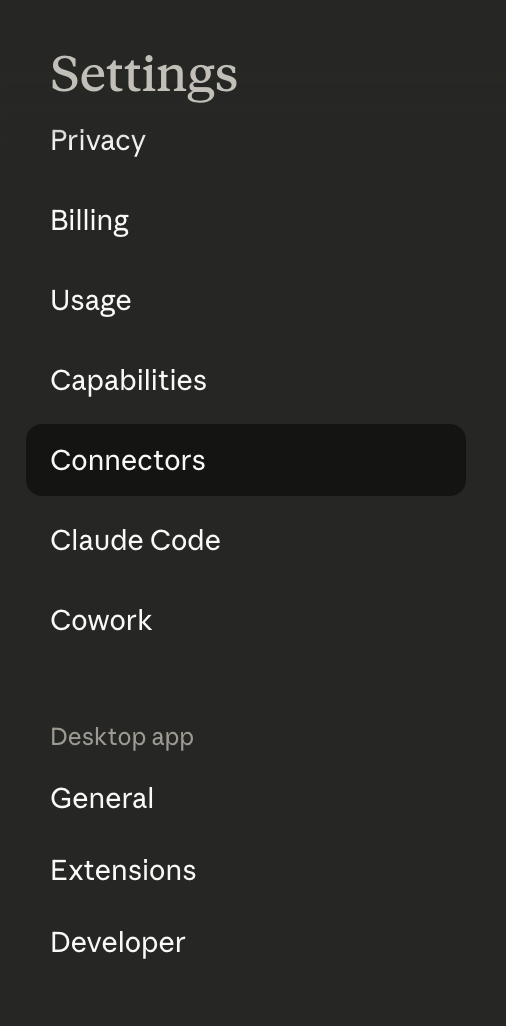
In Claude Desktop, go to Settings → Connectors.
Then either: Browse Connectors → Add a custom one, or click Add Custom Connector.
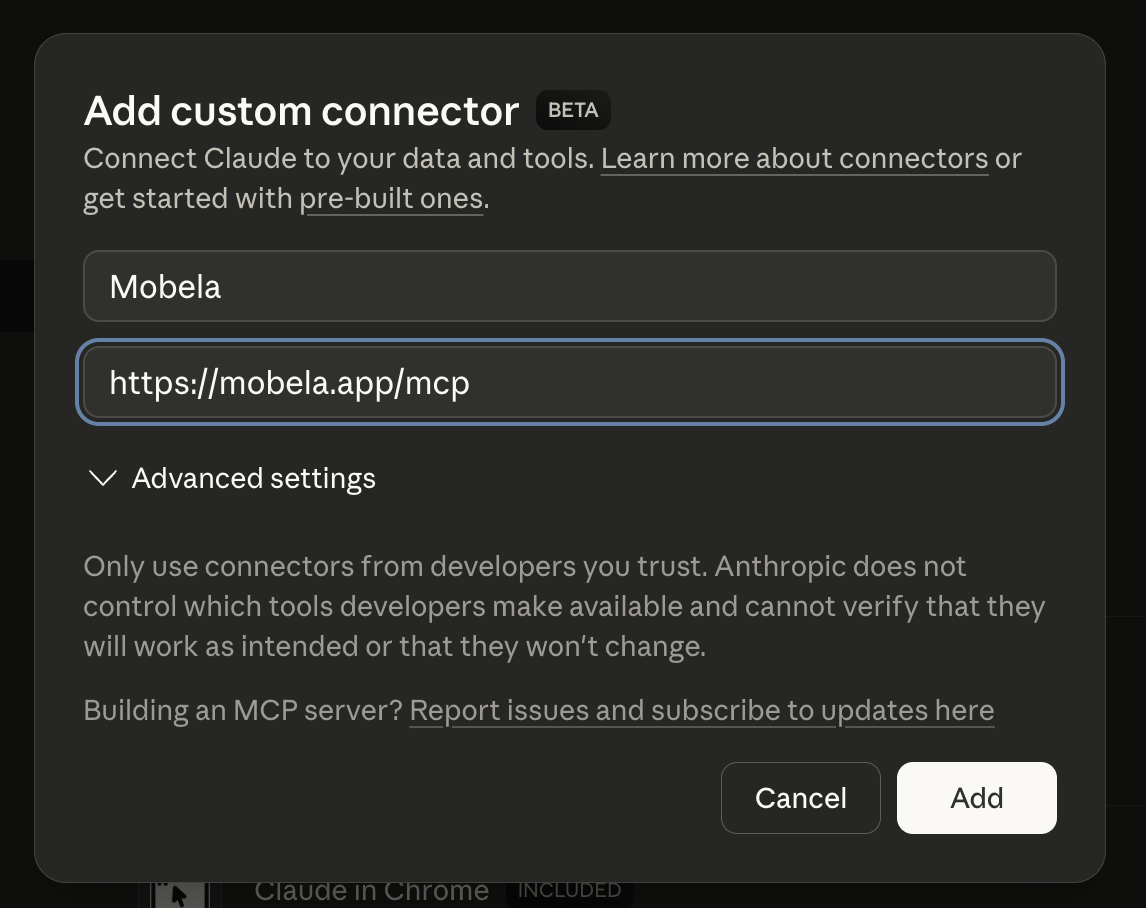
Enter the Mobela connector details
Fill in the two fields:
Name
Remote MCP server URL
Leave Advanced settings empty — they're not needed.
Click Add and sign in
Claude will open a Mobela login screen. Sign in with your existing Mobela email and password. That's it — you're connected.
Start chatting
Claude now has access to your Mobela data. Try asking:
Your data stays yours
Mobela only shares your data with Claude when you ask it to. You can disconnect at any time from Claude's Settings → Connectors page.
Need help? Message us on Instagram
Screenshots